Physical Address
304 North Cardinal St.
Dorchester Center, MA 02124
Physical Address
304 North Cardinal St.
Dorchester Center, MA 02124

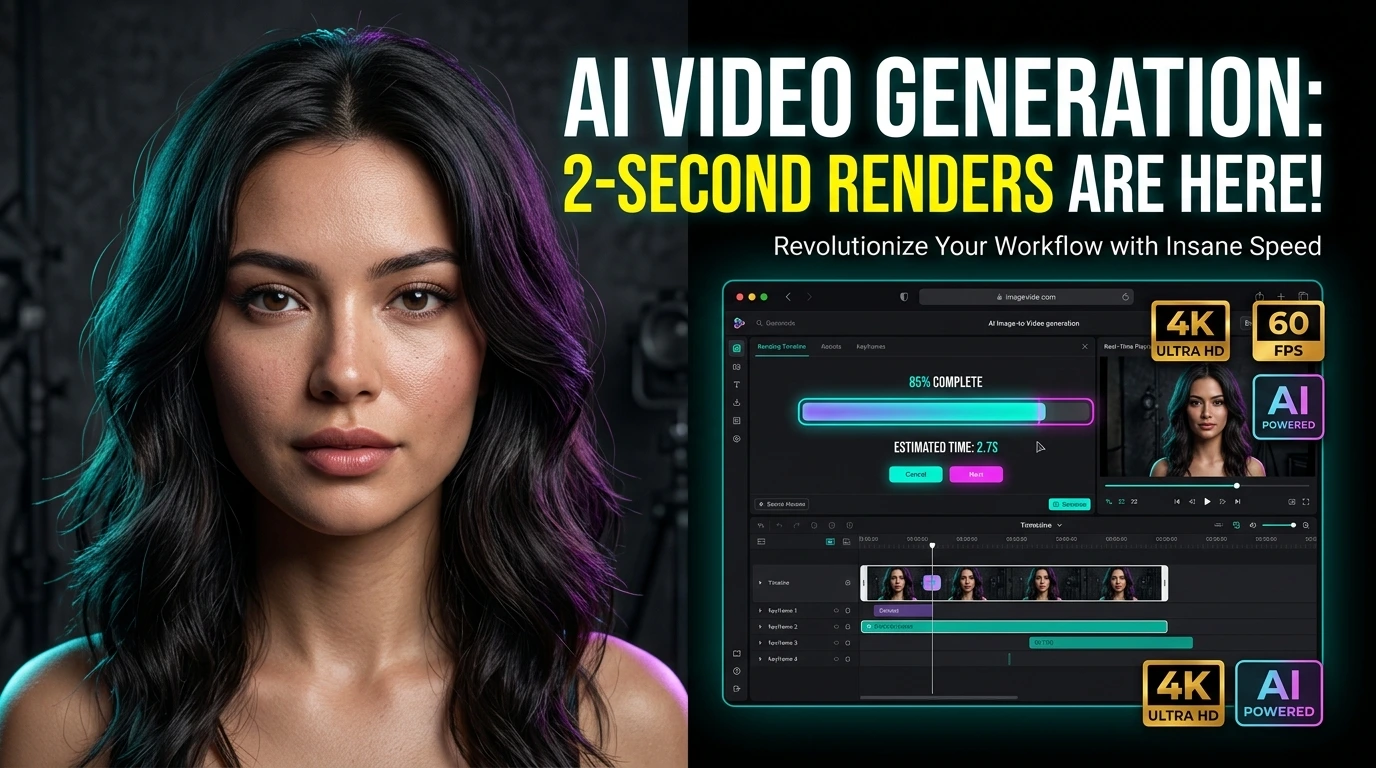
Gen-Motion AI Model Workflow: Complete 2026 Guide to Creating Realistic AI Content
The virtual creator landscape has reached unprecedented heights in 2026. While basic image generators often restrict advanced styling or fail to maintain facial continuity, mastering a dedicated Gen-Motion AI Model Workflow allows digital marketers, content creators, and AI agencies to build fully realistic virtual models with complete creative control.
In this deep-dive masterclass, we will cover the entire pipeline for generating photorealistic AI assets and smooth motion videos using the latest 2.7S AI generation engines, paired with advanced prompt engineering via Grok AI.
—
Why Is the Gen-Motion AI Ecosystem Dominating Virtual Content Creation?
Traditional AI tools frequently struggle with two major hurdles: strict content filter blockages and severe facial distortion during complex animation sequences. The Gen-Motion AI Model Workflow solves both challenges by offering modular processing, allowing creators to map facial attributes onto custom body poses while generating cinematic video render outputs.
Whether your goal is to grow an organic social media presence on TikTok and Reels or build a monetized subscription hub on platforms like Fanvue or Dfans, utilizing a specialized suite yields superior realism and higher audience engagement.
Getting Started: If you haven’t configured your workspace yet, you can sign up via the official [Gen-Motion AI Access Hub](https://fluxaihq.com) to claim your initial trial generation credits and access the 2.7S processing pipeline.
—
Step 1: Generating Photorealistic AI Model Images (2.7S Image Module)
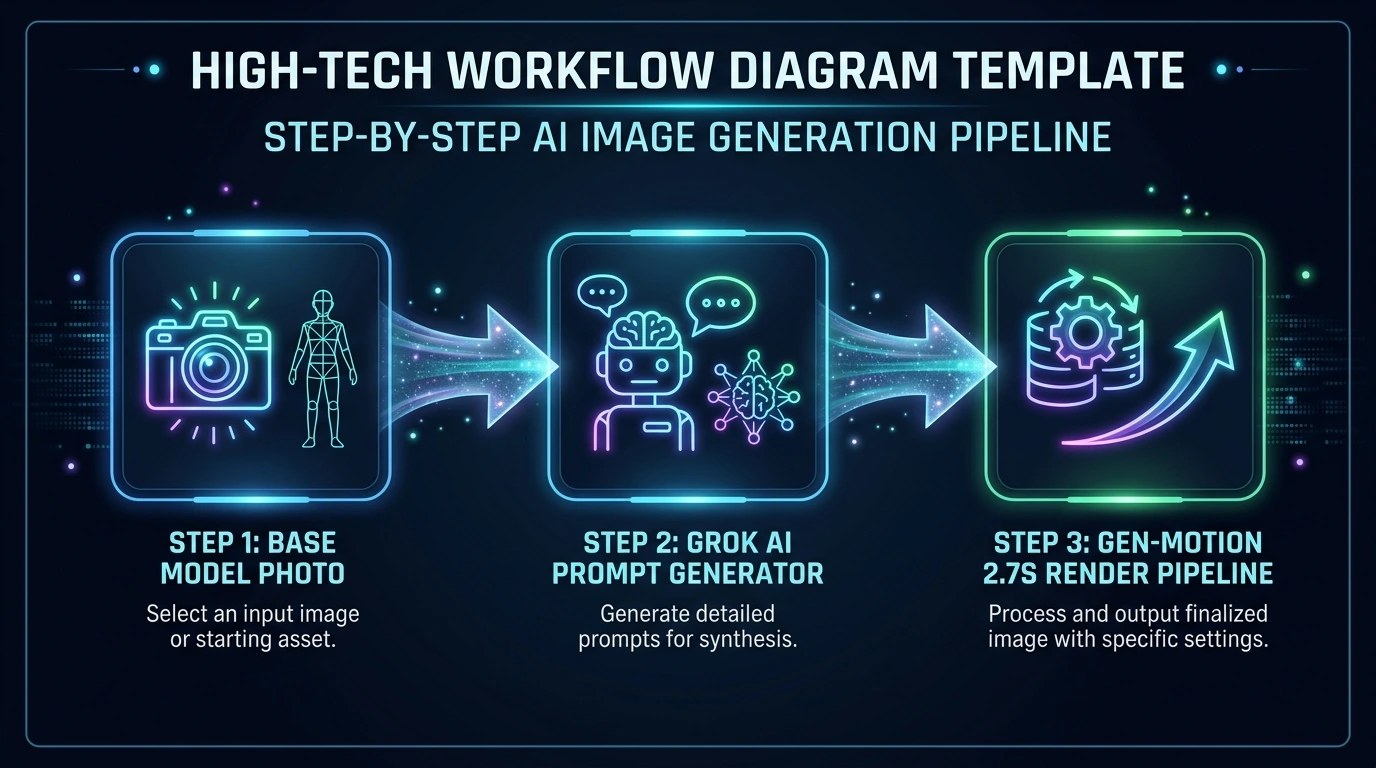
The foundation of any successful virtual influencer starts with static imagery that preserves 100% facial consistency while adapting to custom aesthetics and camera angles.
1. Preparing Your Multi-Input Reference Pipeline
Unlike standard single-image generators, the 2.7S Image engine within Gen-Motion allows creators to chain multiple inputs:
* **Input 1 (Base Face Reference):** Upload a high-resolution portrait of your virtual model to define identity, eye color, and facial structure.
* **Input 2 & 3 (Optional Pose & Composition References):** If you desire a specific body posture, lighting setting, or background composition, upload reference images directly into secondary input slots.
2. Generating Precise Prompts Using Grok AI
To avoid output hallucinations, leverage Grok AI (or Super Grok) to craft highly detailed descriptive prompts based on your initial image inputs:
1. Upload your primary model image into Grok.
2. Prompt Grok: *”Analyze this subject’s facial structure and generate a hyper-realistic camera prompt maintaining identical facial features while placing the subject in [your target aesthetic/lighting].”*
3. Copy the output prompt (ignoring negative prompts for static image generation).
3. Rendering Parameters & Settings
Back in your dashboard, configure the following settings:
* **Module Selection:** Select `2.7S Image Generator` (20 credits per render).
* **Aspect Ratio:** Choose **9:16** for vertical short-form posts (TikTok/Reels/Stories) or **16:9** for cinematic banners.
* **Resolution:** Set to **2K / 4K Ultra-HD**.
* **Batch Count (Number of Outputs):** Set to **2 or 4 images**. Generating multi-image batches allows you to select the best lighting and pose variation.
Click **Generate**. In less than 30 seconds, your hyper-realistic base images will render with pristine detail.
—
Step 2: Animating Static Images into Motion Videos (2.7S Image-to-Video Engine)
Transforming still photos into dynamic clips is where the Gen-Motion AI Model Workflow truly excels over standard motion tools.
1. Setting Up the Start Frame
Navigate to the `2.7S Image-to-Video` generator within your workspace:
Start Frame: Upload your rendered 9:16 image from Step 1 as the starting point.
End Frame (Optional): If you require a smooth transition between two specific poses, upload a secondary frame. Otherwise, leave it blank for automatic motion tracking.
2. Engineering Motion & Negative Prompts via Grok
Video renders require explicit movement instructions alongside negative constraints to eliminate unnatural artifacts:
Motion Prompt: Ask Grok to specify physical movement. For example: *”Cinematic camera pan, subject turning slowly towards the camera, subtle smile, wind gently blowing hair, natural eye blinking, 8k resolution.”*
Negative Prompt: Insert negative constraints such as: *”motion blur, facial distortion, extra limbs, choppy frame rate, unnatural skin stretch.”*
3. Video Render Settings
To optimize budget and visual fidelity, select the following options:
Duration: Select 4 to 6 seconds per video clip (ideal length for loopable social content).
Resolution: Set output quality to 720p or 1080p HD (720p is fully optimized for mobile feeds while saving generation credits).
Once configured, launch the video render. The output will deliver natural fluid motion while preserving the exact face identity of your model.
—
Step 3: Platform Selection & Traffic Monetization Strategies
Building a stunning AI avatar is only half the equation; driving monetization determines long-term success. Creators following this workflow typically choose between two primary avenues:
1. High-Traffic Subscription Hubs (Fanvue vs. Dfans)
Fanvue: Receives over 14 million monthly organic visits, making it the top destination for scaling creator earnings. However, account creation requires identity verification. Creators operating globally often secure verified publisher accounts to tap into this high-volume marketplace.
Dfans: An accessible alternative that fully supports AI creators without strict KYC barriers, making it ideal for beginners building their initial subscription base.
2. Direct Engagement & Conversational Funnels
Social media viral views (via Instagram Reels and TikTok) must be funnelled effectively. Using unified bio-link tools (such as Linktree), direct traffic from your video teasers toward your primary destination link. Responsive direct messaging (DM chatting) remains the highest-converting method for converting casual viewers into paying subscribers.
—
Essential Best Practices for Maintaining Quality
To get the most out of your Gen-Motion AI Model Workflow, adhere to these core rules:
1.Aspect Ratio Alignment: Always match your initial reference image aspect ratio with your final output video settings (e.g., 9:16 input to 9:16 output) to prevent unwanted cropping or aspect stretching.
2. Modular Credit Management: Stick to 4–5 second video loops during testing phases. Short, high-quality loops perform significantly better on social algorithms than long, costly renders.
3. Continuous Prompt Optimization: Keep a dedicated swipe file of your top-performing Grok prompts to replicate consistent lighting setups across future production batches.
—
Mastering a structured Gen-Motion AI Model Workflow unlocks unlimited potential for digital creators looking to scale realistic virtual personas. By combining multi-reference 2.7S image rendering with targeted Grok prompt engineering, you can produce industry-standard visuals that captivate audiences across any platform.
Ready to build your first virtual model? Access your processing tools directly via the [Gen-Motion Creator Dashboard](https://fluxaihq.com) and begin generating today
MORE CONTENT :
AI OFM Guide 2026: How to Create a Realistic AI Model & Monitize Viral Video Content
Viral YouTube Shorts Strategy: How to Build a Million-Subscriber Channel